Hoppa till innehåll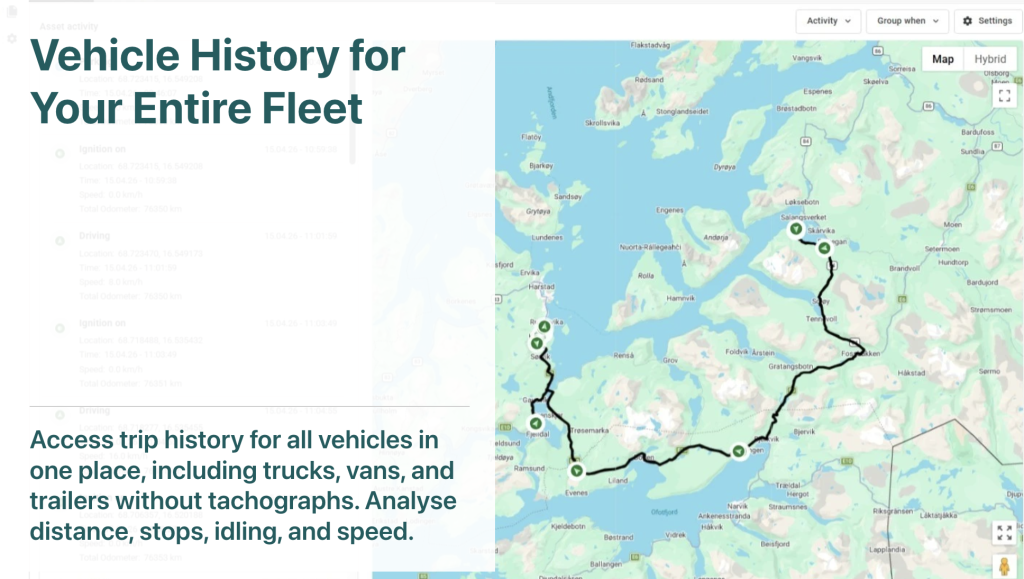
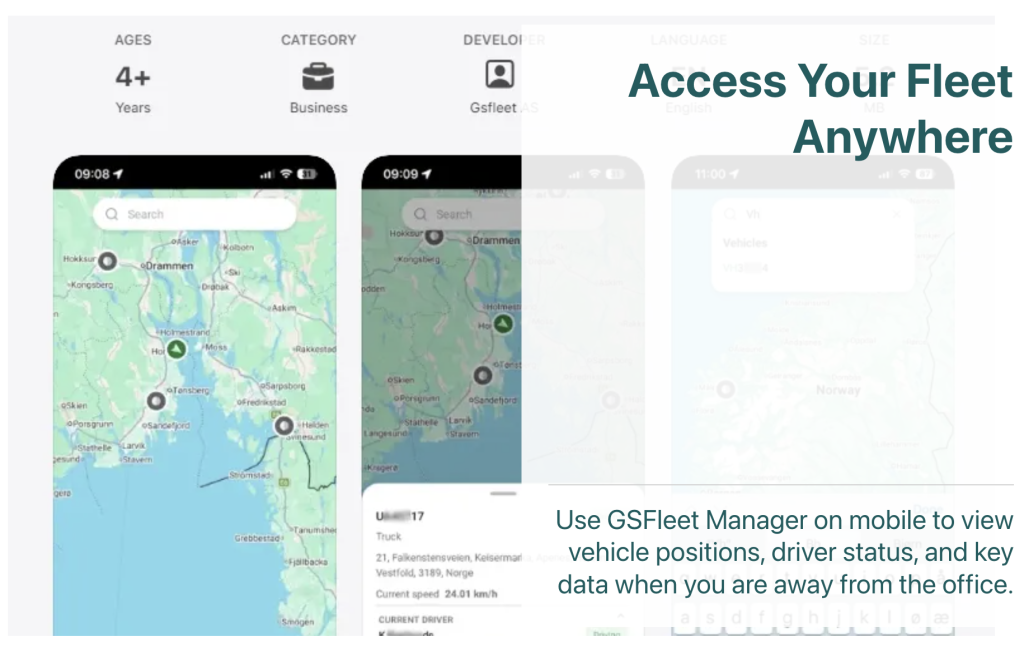
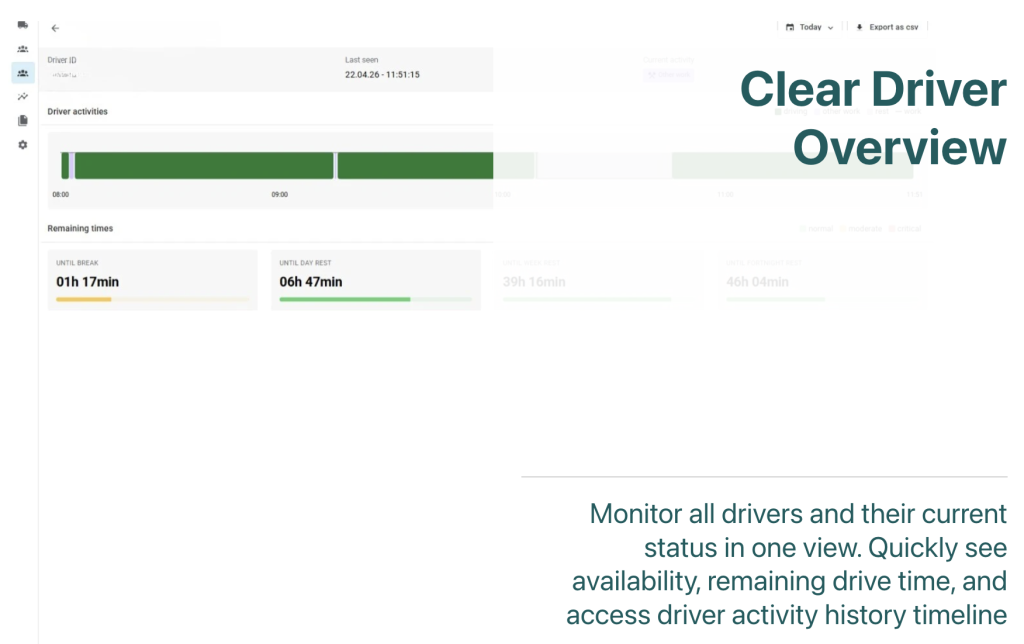
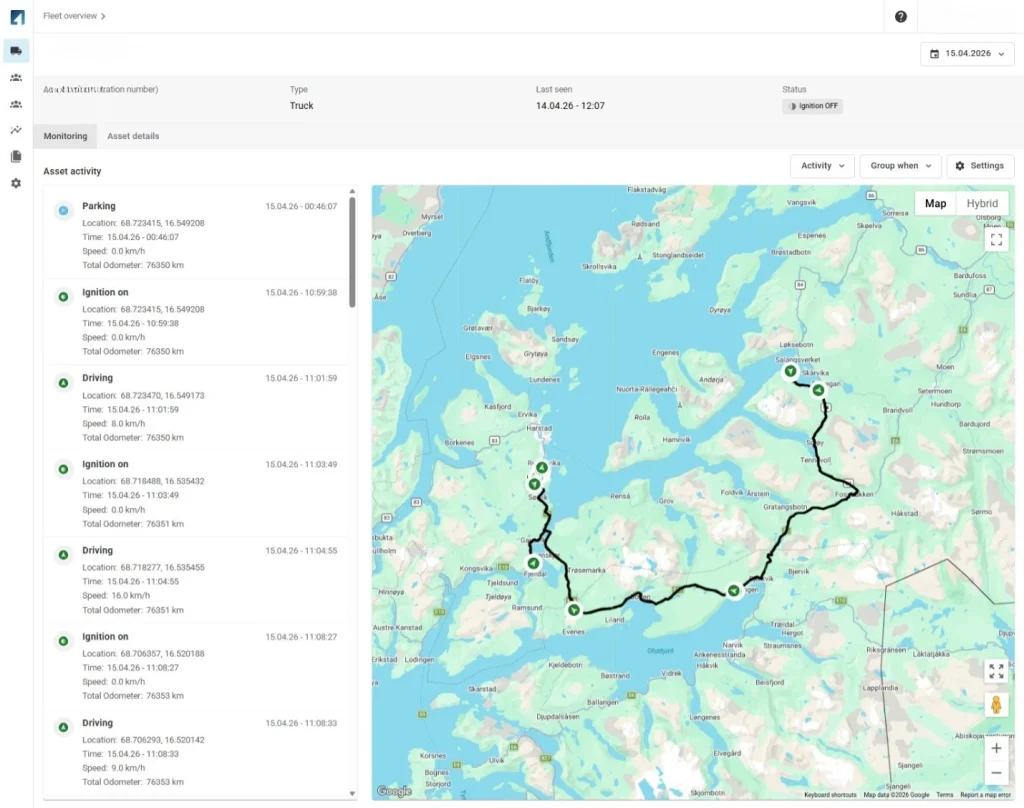
We have fully reworked how vehicle history works in GSFleet Manager. The sections below explain the key improvements and how they help fleet managers to analyse and understand fleet activity more effectively.
Complete Vehicle History for All Fleet Types
View trips, stops, and activity across all vehicles — including those without tachographs.
Compare how trucks, vans, and assets are used over the same period in one unified view — without switching tools or losing detail.
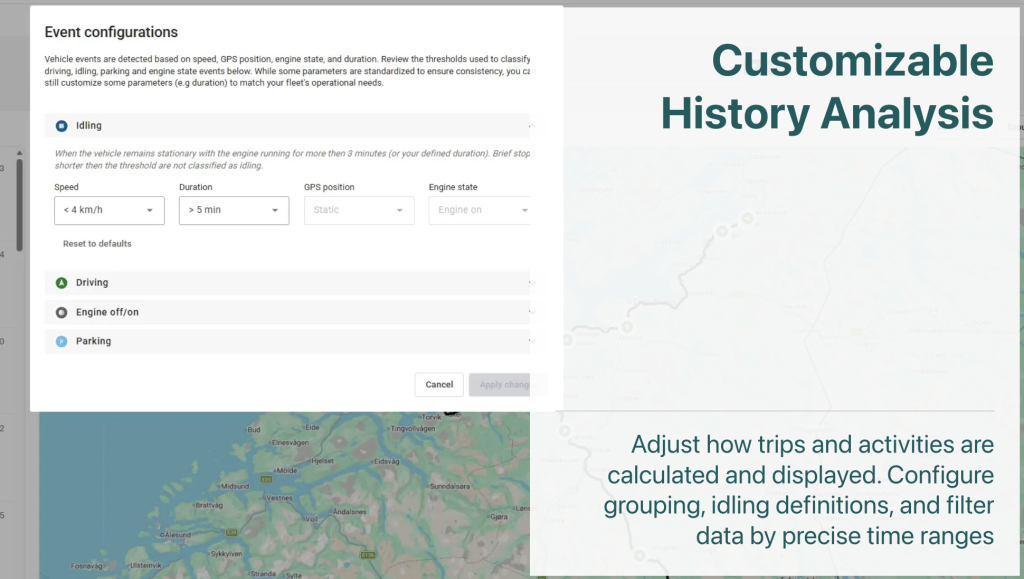
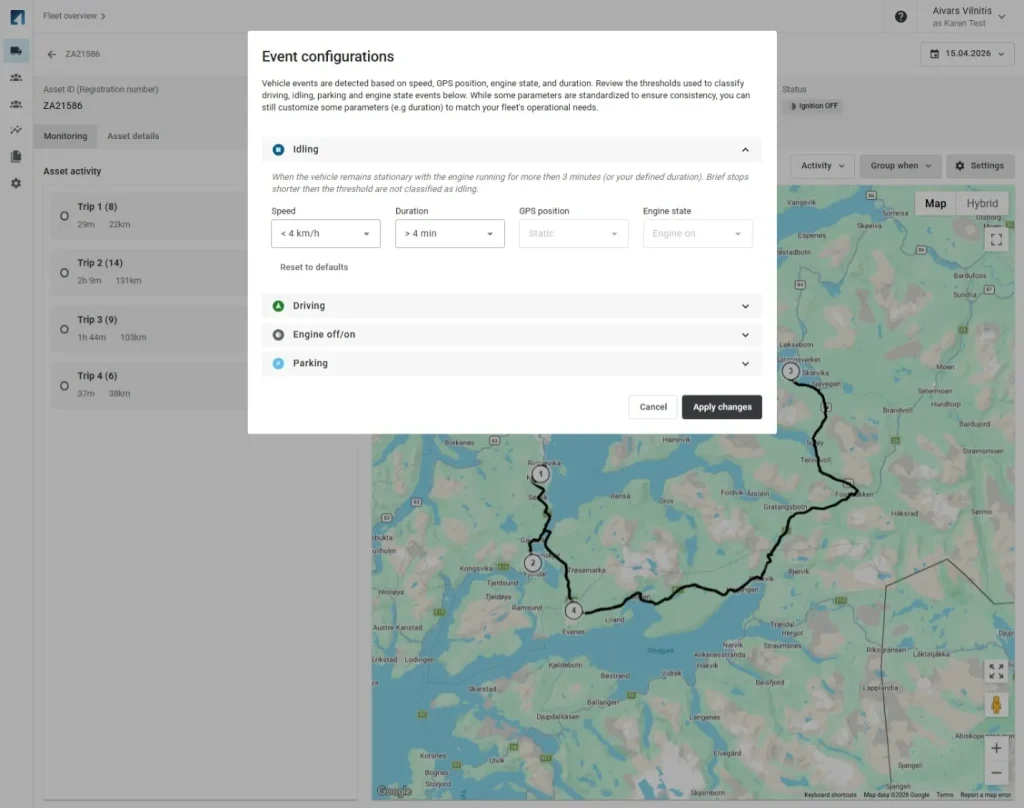
Adjust How Activity Is Calculated
Control how driving, idling, and stop events are defined based on your operations.
Align system logic with how your fleet actually works. If short stops should not count as idling, you can adjust duration thresholds to reflect real working conditions.
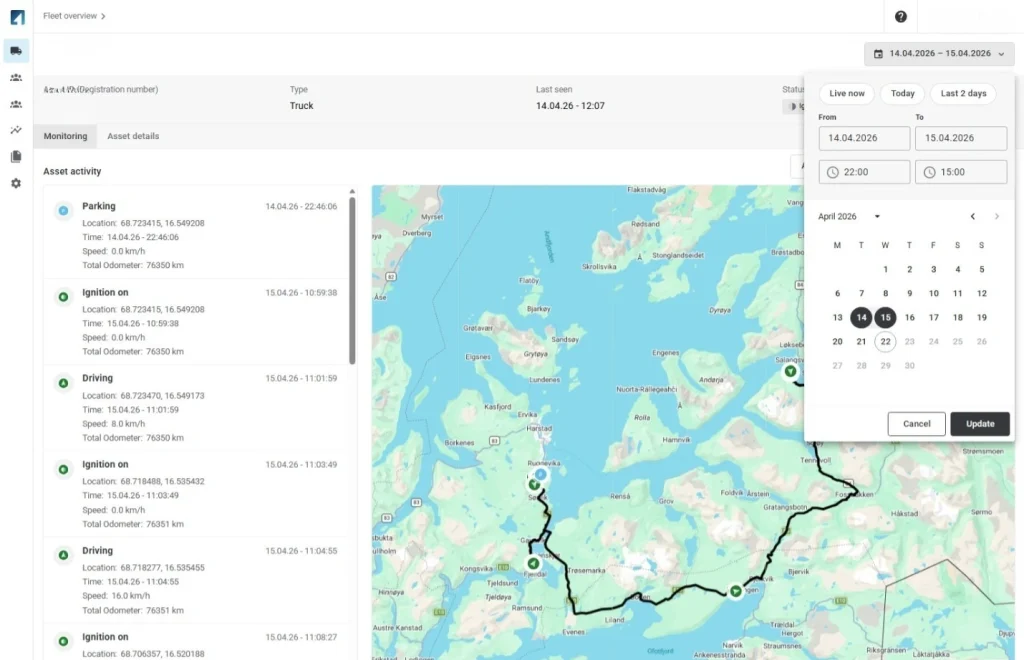
Analyse the Exact Time You Need
Filter vehicle activity using precise time ranges instead of full days. Combined date and time selection.
Example – check what happened between 13:00–15:00 during a delayed delivery instead of reviewing the full day.
Structure Trips in a Way That Makes Sense
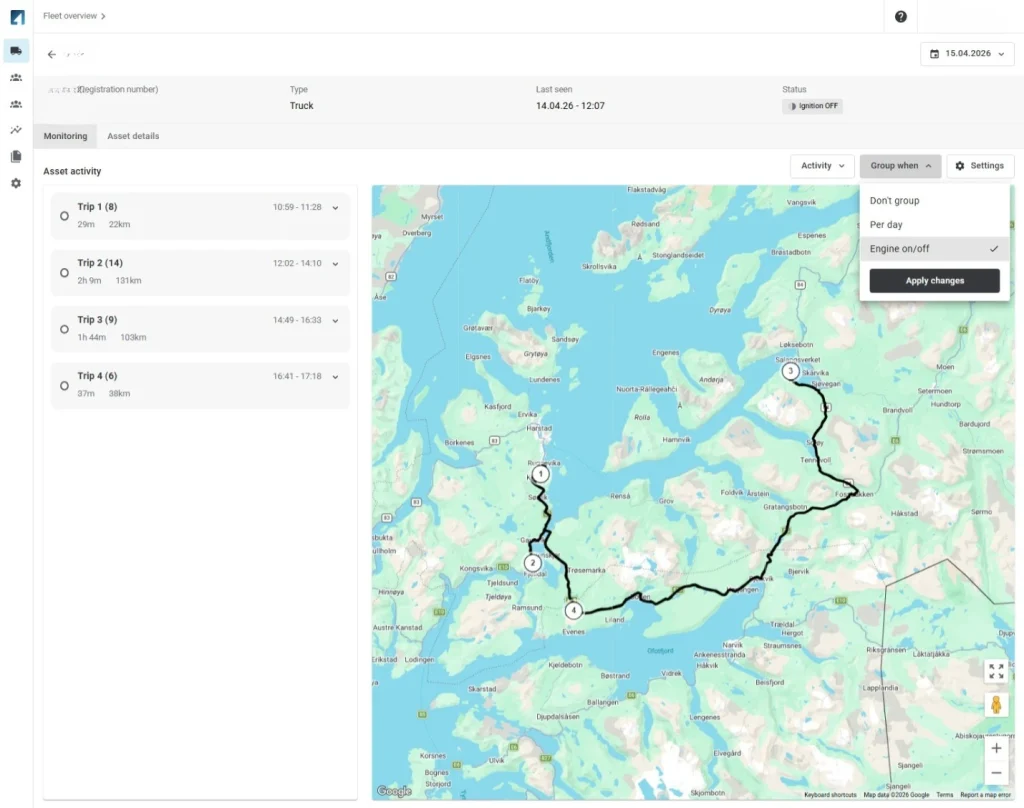
Organise activity into meaningful groups for easier analysis.
Group by day, Group by engine on/off, or Option to remove grouping. Makes long timelines easier to understand. Helps focus on trips instead of raw events
See Key Details Instantly
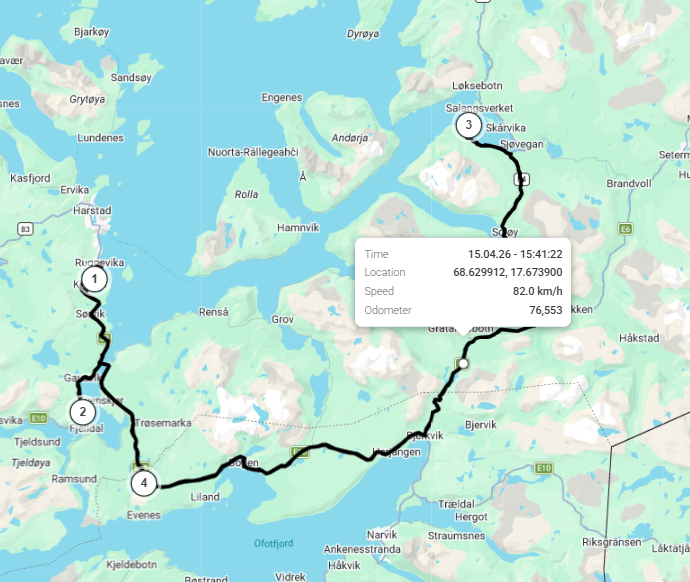
Get important trip information directly from the map without opening additional views.
Hover to see time, location and speed. Reduces need to click through multiple views
Example – hover over a trip point to quickly check speed or timestamp without opening full trip details.
Focus Only on Relevant Activity
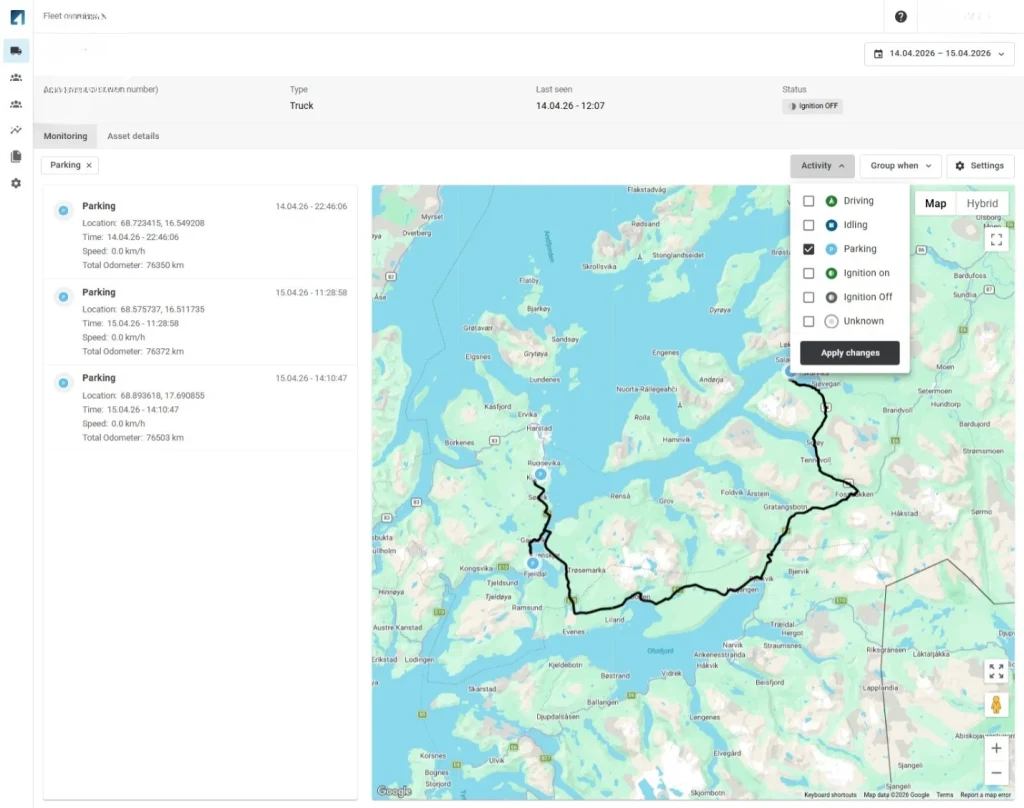
Filter activity types to see only what matters for your task.
Select specific activity types (driving, idling, parking, ignition) and combine filters for more focused views
Reduces noise in complex timelines. Helps isolate specific issues.
Example – show only parking events to analyse stops during a day.